Upload files & CSVs
Do you have data locked away in files on your computer? You can upload files of any type into a canvas using drap-and-drop or selecting them from a file-picker. Different file types will result in slightly different canvas objects:
| File uploaded | Object created | How to use |
|---|---|---|
| CSV file | CSV cell | SQL, visuals, etc. (same as any cell result) |
| Image (e.g. JPEG, PNG) | Image object | Visuals in the canvas |
| Anything else (e.g. PDF, Excel, Word) | File object | Python cells (via count.files) |
All uploads are limited to 100MB per file.
#How to upload files
#Option 1: via the canvas toolbar
Selecting "Upload file..." from the canvas toolbar (see below). This opens a file picker for you to select the files you want to upload.
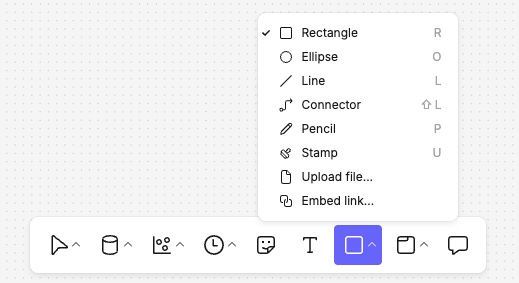
#Option 2: drag-and-drop
You can drag files directly into the canvas from your desktop.
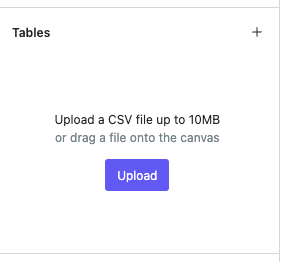
#Option 3: via the data bar (CSV files only)
In the data bar on the left-hand side of the page, you'll see the option to "Upload a CSV file". Click this button to open a file browser and select a CSV file to upload. You can also upload multiple CSV files by dragging them onto the canvas from your file explorer.
#Using uploaded files
#CSV cells
When a CSV file is uploaded a CSV cell is created in the local DuckDB database, which contains all of the rows from the file.
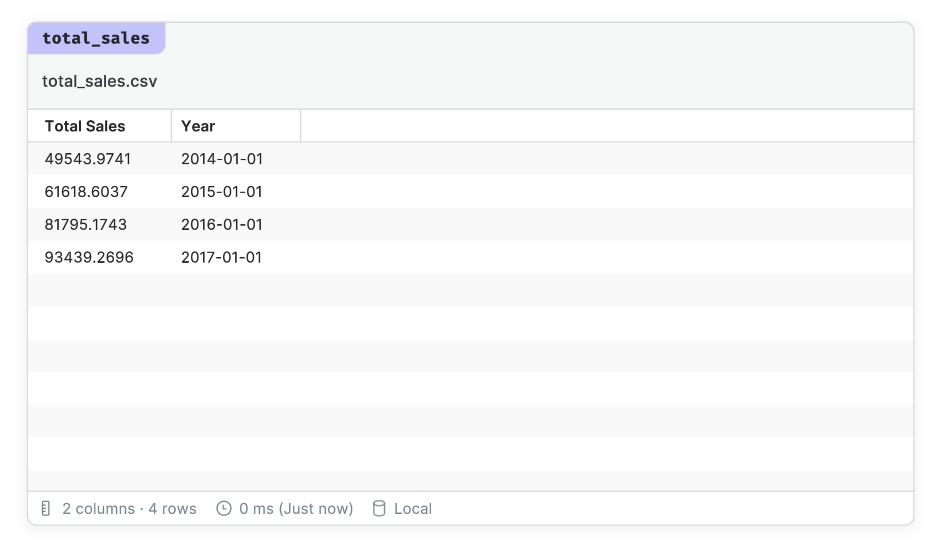
To query this file just refer to it in a SQL statement by name, like any other cell.
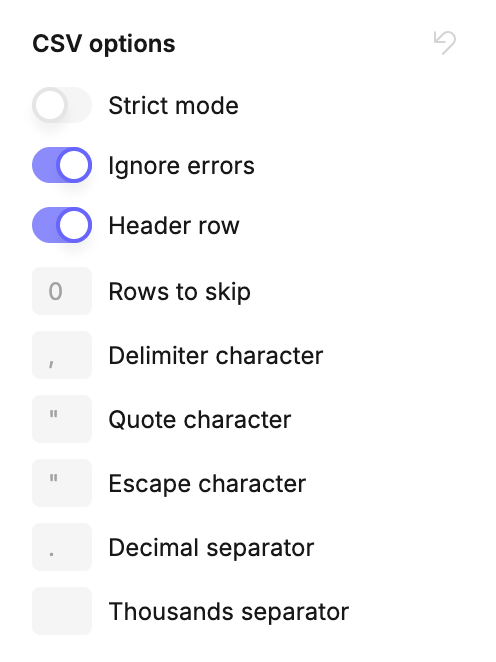
You can make changes to how Count reads a CSV file using the righthand canvas menu. This allows you to override the encoding options Count has detected and set your own delimiting, quote and escape characters as well as ignore / include a header row.
#File objects
Other uploaded files create file objects in the canvas. File objects are queryable via Python cells using an API demonstrated in this example:
import pandas as pd

df = pd.read_excel(count.files['sales_2024'].path)
The file API we expose in Python offers .path for a temporary file path, .text() for its contents as a string, and .read() for raw bytes. See Python cells for the full API, including how Python cells can produce files of their own.
We recommend asking the agent to work with files (e.g. to extract data from files or modify them in some way) and it would use Python cells to do this.
File objects have two names, both editable from the righthand menu:
- File name is the display name, used when downloading. Its extension can't be changed.
- The identifier Python cells use, as in count.files['sales_2024']. Renaming this identifier updates every Python cell that references it, in the same way as renaming a cell.
#Who can upload
- Uploading CSVs requires data access on the canvas, meaning you're an Analyst, Admin or Owner. Other editors see "Only editors with data access can upload CSV files".
- Uploading files and images is available to anyone who can edit the canvas.
- Creating a Python cell to read a file also requires data access.
#Who can see uploaded files?
Any other viewers of your canvas will see the files you've uploaded.
If you wish to keep your files private, you should use a private project, or make sure you are the only person permitted to view the canvas.
Last updated: 24/09/26