Frames
Frames are a powerful way to organize and structure your canvas. They let you:
- Group related objects together for easier organisation.
- Define presentation-ready sections of your work, frames are the basis of what’s displayed in Present view.
- Hide frames to reduce clutter, and show them only when needed.
A common use case is to separate your canvas into planning, analysis, and findings frames. This makes it easier to work collaboratively, while keeping the end output clear and polished.
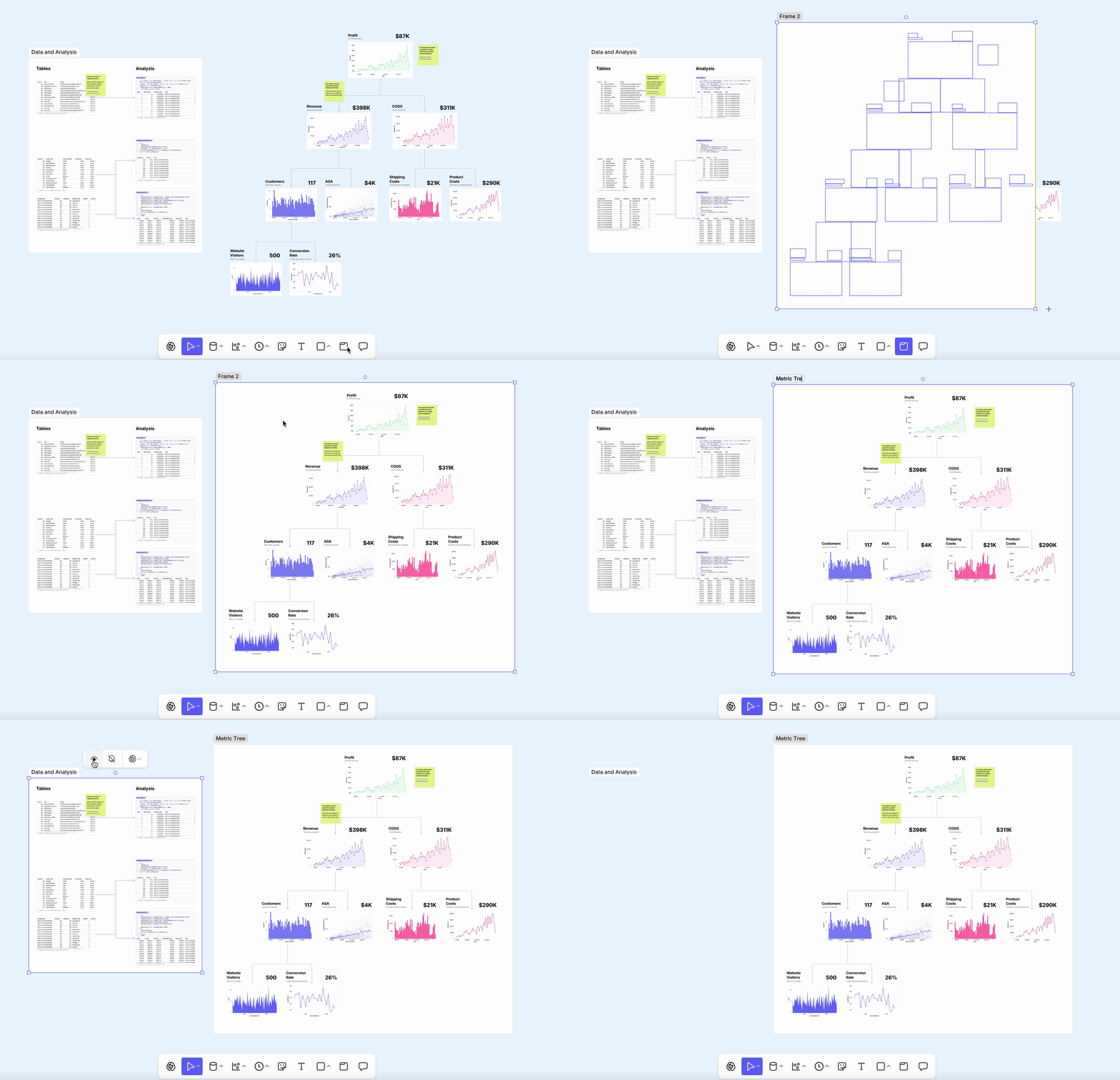
#Creating frames
There are two ways to create a frame:
- Insert from toolbar – Select the Frame tool or press
F, then click and drag on the canvas. - Frame selection – Select an object or group of objects, then right-click > Frame selection, or use the shortcut
Cmd + ⌥ + G(Mac) /Ctrl + Alt + G(Windows).
Objects covered by a newly created frame are automatically added to it.
#Managing contents
- Add objects by dragging them inside the frame boundaries.
- Remove objects by dragging them out.
- When an object is about to be added, the frame border will highlight.
- Not sure if something is in a frame? Move the frame — if the object comes with it, it’s inside.
#Moving a frame
- Select the frame by clicking its name label or empty space inside its border.
- Drag to move the frame and all contained objects.
- Clicking directly on an object inside will move that object only.
- Drag the frame edges or corners to resize it.
#Hiding a frame
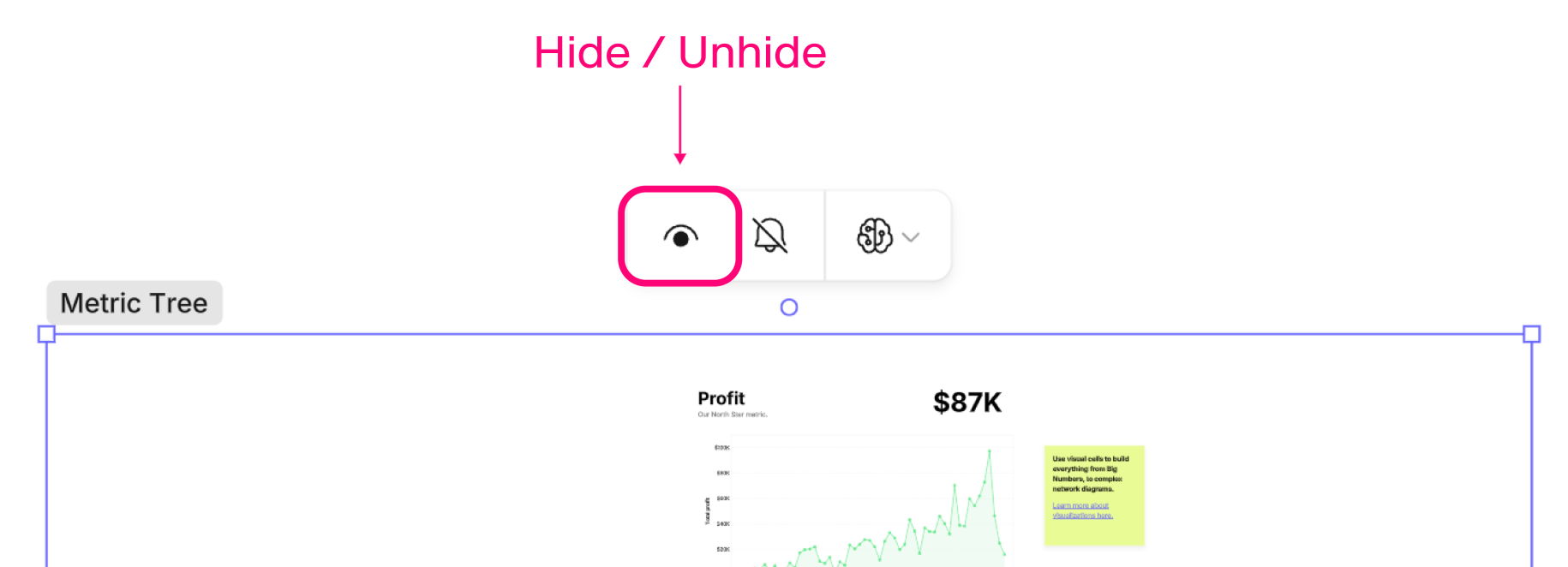
- Select the frame and click the eye icon to hide its contents.
- A hidden frame leaves only the handle visible.
- Click the eye icon again to un-hide.
#Formatting frames
Frames have additional formatting options in the design sidebar:
- Corners – Adjust the corner radius.
- Fill – Set a background color and opacity.
- Stroke – Set a border color, opacity, and width.
- The stroke color also defines the background color of the frame title.
- Opacity – Adjust the overall transparency of the frame.
#Frame controls & permissions
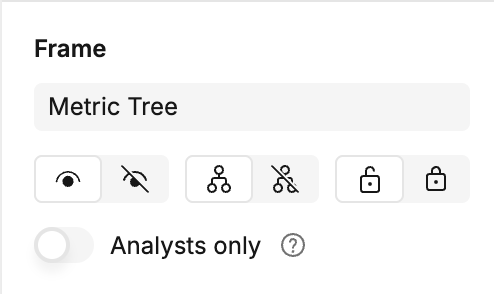
In the design sidebar, additional frame controls are available:
- Show/hide the frame contents.
- Show/hide cell connectors within the frame.
- Lock or unlock the frame.
Analysts can also restrict these controls so only analysts can modify them. For example, an analyst may:
- Add a complex analysis inside a frame.
- Hide and lock the frame.
- Restrict editing to analysts.
Other users will only see the frame handle and cannot open or change it.
#Using frames for database management
Cells hidden in frames won't re-run unless a cell outside the frame depends on it. If you have completed some self-contained analysis, this can be a good way of 'storing' those cells while ensuring they don't refresh to optimize canvas performance.
#Exporting and templates
- Frames can be exported directly as PNG images.
- Frames can also be saved as templates, making them reusable in other canvases.
#Limitations
- Frames cannot contain other frames.
- If a frame overlaps another, they remain separate.
- However, in reports: if a frame spatially contains another frame, both may appear (hidden frames included), allowing readers to optionally reveal more context.
Last updated: 03/08/26